
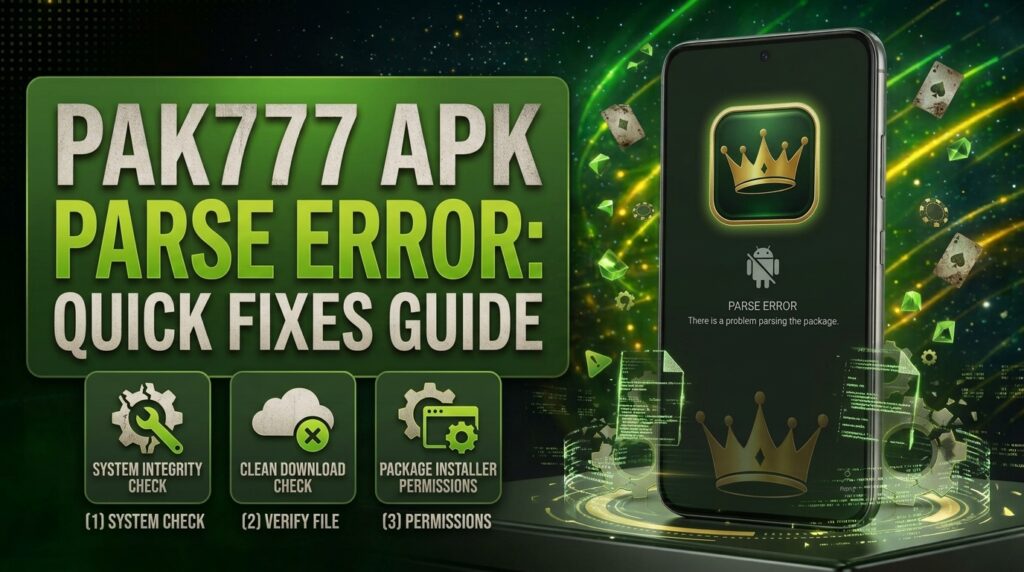
A PAK777 APK parse error means your Android device couldn’t read or install the app file because it’s damaged, incomplete, or not compatible with your system. This usually happens if the download was interrupted, the file got corrupted during transfer, or you’re using an APK version that doesn’t match your device’s Android OS. The error appears during installation and stops the process before the app can be set up. It’s not a problem with your account or payment—it’s a technical issue with the file itself. To fix it, always make sure you’re downloading the APK only from the official PAK777.io site, that your file size is around 38–42 MB (indicating a complete download), and that your device meets the minimum Android 8.0 requirement. If the issue continues, our full guide to APK installation troubleshooting walks you through clearing system cache, checking your device’s architecture, and re-downloading safely.
Common Causes of the PAK777 APK Parse Error
The PAK777 APK parse error usually happens for three main reasons. First, your download might have been interrupted—like if your internet dropped or you closed the browser too soon. Second, the file could have gotten damaged while being transferred, especially if you moved it from a computer or used a weak connection. Third, you might be trying to install an APK version that doesn’t match your Android OS—like using a newer version on an older phone. These issues stop the app from installing properly because the system can’t read the file. To avoid this, always download the APK directly from our official site, make sure the file is complete (around 38–42 MB), and confirm your device runs Android 8.0 or higher. If you’re still stuck, our full guide to APK installation troubleshooting covers how to clear cache, check your device’s architecture, and re-download safely.
Verify Your APK Source and File Integrity
To fix a PAK777 APK parse error, first confirm you downloaded the file directly from our official site, PAK777.io. We only release APKs through this domain, so any download from other sources may be tampered with or outdated. Next, check the file size: our latest version should be between 38 and 42 MB. If it’s significantly smaller, the download was likely incomplete—especially if interrupted by a weak connection or browser crash. A file under 30 MB or over 50 MB is a strong sign of corruption or an incorrect version. Always verify the size after downloading, before attempting installation. This simple check helps rule out corrupted or fake files. If the size is off, delete the file and re-download from PAK777.io. Our full guide to APK installation troubleshooting explains how to verify file integrity and avoid common pitfalls.
Check Android Compatibility Settings
Before installing the PAK777 APK, make sure your Android device runs version 8.0 or later, as older versions may not support the app’s current requirements. Go to Settings > About Phone > Android Version to check your current OS. Also, enable ‘Unknown Sources’ in Settings > Security to allow installations from outside the Google Play Store. This setting is required for APK files and is turned off by default for security. If it’s disabled, your device won’t let you install the app, even if the file is valid. Once enabled, you can proceed with the installation. If you’re unsure whether the setting is active, just toggle it off and back on to refresh the state. Always double-check these settings after a system update, as they can reset. For more details on securing your installation, our account security guide covers best practices for protecting your device and login.
Clear Cache and Data from Package Installer
If you’re seeing a PAK777 APK parse error, clearing the cache and data from the Android Package Installer can help. This app handles all APK installations. Over time, its cache can get corrupted. That can block proper file reading. It’s a common fix for installation hiccups. Go to Settings > Apps > Package Installer > Storage. Tap ‘Clear Cache’ first. Then tap ‘Clear Data’. This resets the installer’s temporary files. Don’t worry — your apps and data stay safe. After clearing, try installing the PAK777 APK again. The system will start fresh. This step often resolves parsing issues caused by old or conflicting system data. If the error persists, our full guide to APK installation troubleshooting covers next steps.
Use the Correct APK File for Your Device
Make sure you’re using the right APK file for your device. Most modern Android phones and tablets use ARM64 architecture. This is the standard for current devices. If your APK is labeled for x86 or another architecture, it won’t work. You’ll likely see a parse error. Always check the file name or description. Look for terms like “arm64” or “aarch64”. Avoid files marked for x86, x86_64, or other unsupported types. Using the wrong version causes installation failures. We recommend downloading the latest APK only from PAK777.io. This ensures you get a file built for your device. Double-check before you install. It saves time and prevents errors. If you’re unsure, our full guide to APK compatibility helps you match your device to the right file.
Comparison of APK Installation Failure Types
| Failure Type | Common Symptoms | Typical Causes |
|---|---|---|
| Parse Error | Installation fails with “Parse error” or “The package cannot be installed”. No app icon appears. File appears corrupted or unreadable. | Corrupted or incomplete download, file format mismatch, or APK built for unsupported architecture (e.g., x86 instead of arm64). |
| Installation Blocked by Security | “Unknown sources not allowed” message. Installation is denied even with permission enabled. Device prevents installation from external sources. | Unknown Sources setting disabled in Security settings, or Android version restrictions on sideloading. |
| App Crashes After Install | App opens briefly, then closes immediately. No error message, or crash occurs on startup. May show “Unfortunately, the app has stopped”. | Missing system dependencies, incompatible Android OS version, or corrupted installation files. |
How to Reinstall the PAK777 APK Correctly
To fix a PAK777 APK parse error, start by uninstalling the old app from your device’s Settings > Apps. Next, clear the cache and data of the Package Installer app by going to Settings > Apps > See all apps > Package Installer > Storage > Clear Cache and Clear Data. Then, download the latest PAK777 APK directly from https://pak777.io—ensure the file size is between 38–42 MB to confirm it’s complete and uncorrupted. Before installing, enable ‘Unknown Sources’ in Settings > Security > Special Access > Install unknown apps. Once enabled, open the downloaded APK file and follow the prompts to install. If you see a warning about the app being from an unknown source, tap ‘Install’ to proceed. After installation, open the app and check for proper functionality. If issues persist, our full guide to APK troubleshooting can help you dig deeper.
Verify Your Device’s Storage and Permissions
Before installing the PAK777 APK, check your device’s storage. Make sure you have at least 100 MB free. Low storage can cause installation to fail. Also, during installation, the app needs full permission access. This includes storage, camera, and network. Without these, the install may fail. We recommend reviewing permissions before starting. Tap ‘Allow’ when prompted. This helps the app run properly. If you skip or deny permissions, the app may not work as expected. Always grant access when asked. This step is key to a smooth setup. If you’re unsure, check your device settings. Ensure no restrictions block the app. We’ve seen this fix parse errors in many cases. For more on app security, our account security guide can help.
PAK777 APK Parse Error: Quick Fixes Guide
If you’re seeing a PAK777 APK parse error, it usually means your device couldn’t read the app file due to corruption, an incomplete download, or a version mismatch. This can happen even if you downloaded from the official source. We recommend trying the full set of fixes in our PAK777 APK Parse Error: Quick Fixes Guide, which covers everything from clearing the package installer cache to using ADB commands or trusted third-party installers for advanced users. The guide walks you through each step with clear instructions and helps you identify the root cause. Make sure your device meets the minimum Android 8.0 requirement and that you’ve enabled ‘Unknown Sources’ in settings. If the error persists after all steps, contact support with your device details for further help.
Image: PAK777 APK Download and Install Process
Here is what the PAK777 APK download and installation process looks like on your Android device. First, you’ll see the APK file downloading in your browser. Once complete, tapping the file triggers the installation prompt, and you’ll be asked to confirm installation from an unknown source. Make sure ‘Unknown Sources’ is enabled in your device settings—this is required for third-party app installations. After confirming, the installation begins, and you’ll see the progress bar. Once done, the PAK777 app icon appears on your home screen. If you run into issues, our full guide to APK installation troubleshooting can help you resolve common problems.
PAK777 App Update Requirements
Using an outdated PAK777 APK can cause parse errors. Your device may fail to read or install the app. This often happens with old versions. We recommend updating through PAK777.io only. This ensures you get the latest, secure version. Outdated files may not work with your current Android OS. They can also pose security risks. Always download updates from our official site. Never use third-party sources. Check your device’s Android version. Make sure it meets the minimum requirements. Keep your app updated. It improves performance and safety. If you still face issues, our full guide to APK installation troubleshooting can help you fix them.
Security Best Practices for APK Installation
Always scan your PAK777 APK file with a trusted antivirus app before installing. This helps catch any hidden threats. Never download APKs from unknown websites. Third-party sites often serve modified or infected files. We only provide APKs on our official site, PAK777.io. That’s the only safe source. If you use a different site, you risk malware. Malware can steal your data or damage your device. Always check the file size. Our latest APK is around 38–42 MB. A much smaller file may be incomplete. We recommend using your device’s built-in security tools. They’re designed to keep you safe. Protect your account. Keep your device updated. And if you’re unsure, our full guide to APK security best practices has more details.
When to Contact PAK777 Support
If you’ve tried every fix and the PAK777 APK still won’t install due to a parse error, it’s time to reach out to our support team. We can look into deeper issues that might be specific to your device or installation setup. To help us assist you faster, please use the official PAK777.io contact form and include your device model, your Android OS version, and the exact file size of the APK you downloaded. This info helps us check if the file matches our expected version and if your device meets the requirements. Don’t worry—we won’t ask for your password or account details. Just the technical details so we can solve the problem. Our team reviews every message and responds as quickly as possible. For more on how we handle support requests, see our account security guide.
Final Checklist Before Reinstalling
Before reinstalling the PAK777 APK, make sure you’ve checked a few key things. First, confirm you’re downloading the file only from our official site, PAK777.io, to avoid tampered or outdated versions. Next, verify the file size is between 38 and 42 MB—this helps ensure the download finished completely and isn’t corrupted. Then, go to your device’s Settings > Security and turn on ‘Unknown Sources’ so your phone can install apps from outside the Google Play Store. Also, clear the cache and data from the Package Installer app to fix any temporary glitches blocking the install. Finally, check that your device has at least 100 MB of free internal storage. Doing all of this reduces the risk of another parse error and gives you the best chance for a smooth setup. If you’re still stuck, our full guide to APK installation can help.